> For the complete documentation index, see [llms.txt](https://doc.ancoraspring.com/llms.txt). Markdown versions of documentation pages are available by appending `.md` to page URLs; this page is available as [Markdown](https://doc.ancoraspring.com/asmagic/start-here/control-with-joystick-tool.md).

# Joystick Controls

## On-screen controls

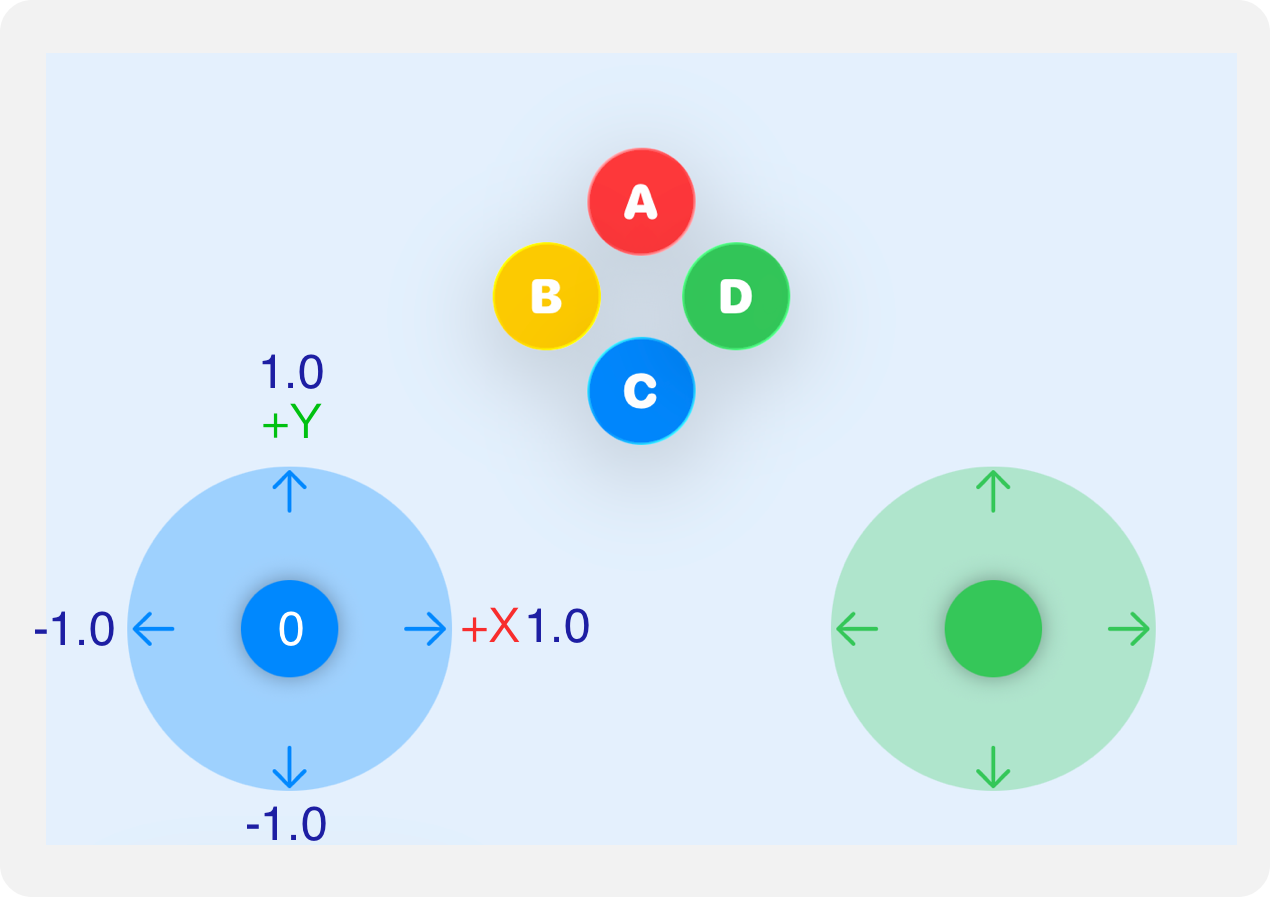
| Control             | Value                     |
| ------------------- | ------------------------- |
| Left / right sticks | −1 to +1; center `(0, 0)` |
| X / Y               | Right / up positive       |
| △ □ × ○             | Pressed / released        |

<figure><img src="https://3069436181-files.gitbook.io/~/files/v0/b/gitbook-x-prod.appspot.com/o/spaces%2FiTOs5tBJUyhQCv2lbX6A%2Fuploads%2Ff7SV7QCOUZWo7AHqv8BU%2FasMagic_Joysitck%2BCoordi.png?alt=media&amp;token=35d8b171-e45c-4ea9-8f8e-e91ccb9e3916" alt="On-screen left and right joystick axes and face buttons" width="375"><figcaption></figcaption></figure>

## Send input

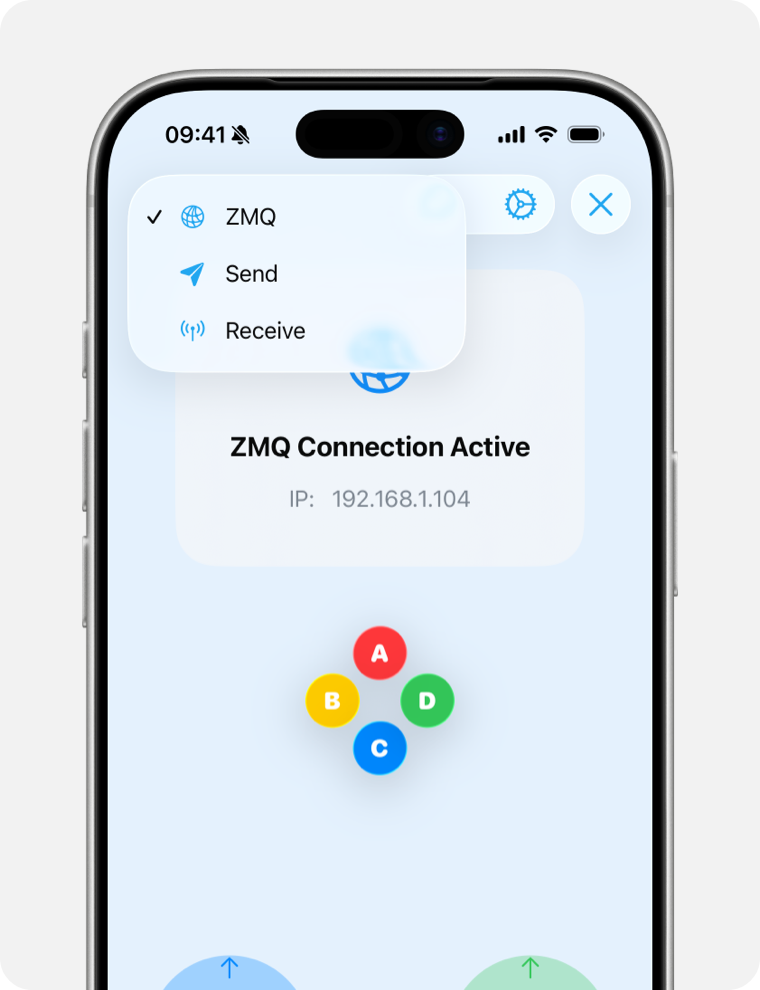
<figure><img src="https://3069436181-files.gitbook.io/~/files/v0/b/gitbook-x-prod.appspot.com/o/spaces%2FiTOs5tBJUyhQCv2lbX6A%2Fuploads%2FcVSxChpN7EUZKxNuSE1Q%2FasMagic_Joystick_mode.png?alt=media&amp;token=a2c66c1d-bf6c-4f78-acec-ac1da405e21c" alt="Joystick output mode menu" width="375"><figcaption></figcaption></figure>

{% tabs %}
{% tab title="Computer / robot" %}
{% stepper %}
{% step %}
Select **ZMQ** in the mode menu.
{% endstep %}

{% step %}
Copy the IP shown in the App.
{% endstep %}

{% step %}
Run the [Joystick receiving code](/asmagic/python-sdk/receiving-streamed-data/joystick-receiving-example.md).
{% endstep %}
{% endstepper %}
{% endtab %}

{% tab title="Another iPhone / iPad" %}
Select **Wi-Fi Aware**. Use one device as sender and the other as receiver.

<details>

<summary>Pair devices</summary>

{% stepper %}
{% step %}
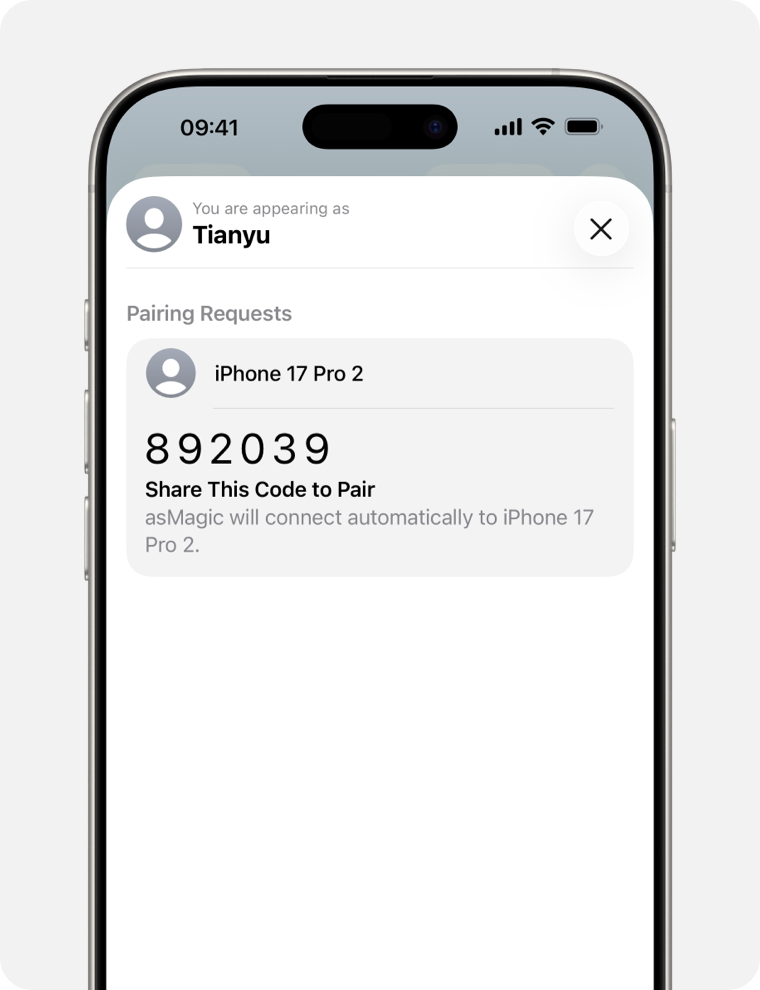
Open **Joystick** on both devices and tap **Add Device**.
{% endstep %}

{% step %}
On the receiver, select the sender.
{% endstep %}

{% step %}
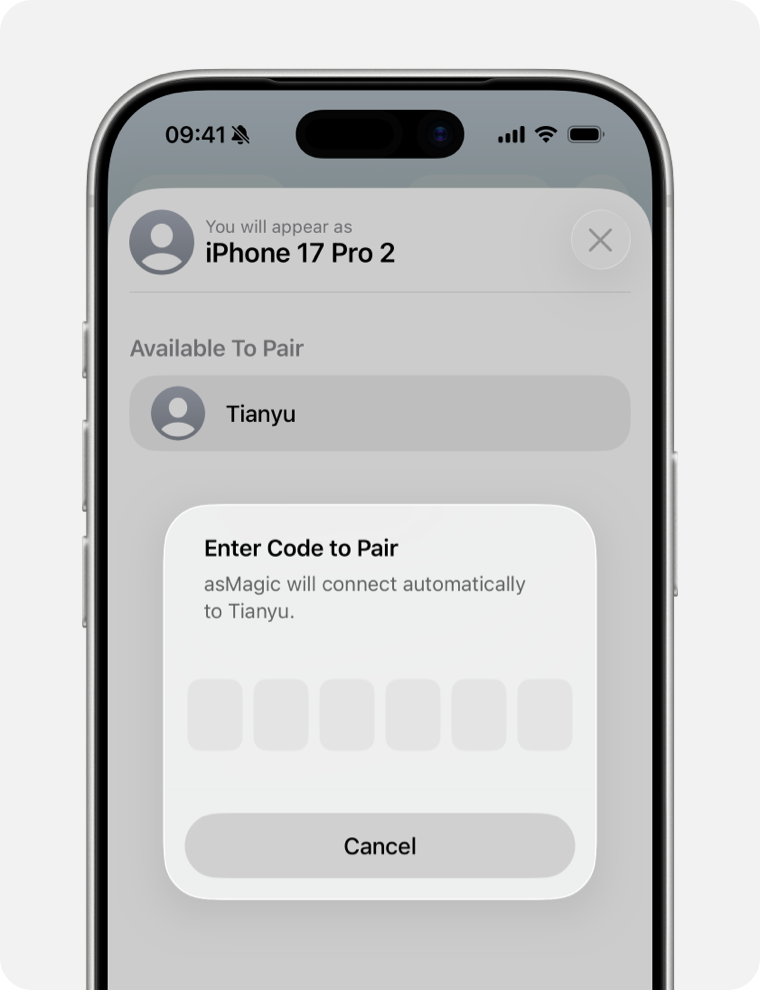
Enter the sender’s six-digit code on the receiver, then close the pairing window.
{% endstep %}
{% endstepper %}

<figure><img src="https://3069436181-files.gitbook.io/~/files/v0/b/gitbook-x-prod.appspot.com/o/spaces%2FiTOs5tBJUyhQCv2lbX6A%2Fuploads%2F2qpRpaML8bWxYymPpT5F%2FasMagic_Joystick_pare3.png?alt=media&amp;token=cfb08f92-8792-4f78-b8b3-aa1a8876aee4" alt="Joystick device pairing screen"><figcaption></figcaption></figure>

<figure><img src="https://3069436181-files.gitbook.io/~/files/v0/b/gitbook-x-prod.appspot.com/o/spaces%2FiTOs5tBJUyhQCv2lbX6A%2Fuploads%2Fn86qMqvZiIYl4SKbmc6A%2FasMagic_Joystick_pare2.png?alt=media&amp;token=776ead87-b848-445d-b263-bea755d39df7" alt="Joystick pairing code entry"><figcaption></figcaption></figure>

</details>

{% stepper %}
{% step %}
On the sender, tap **Advertise**.
{% endstep %}

{% step %}
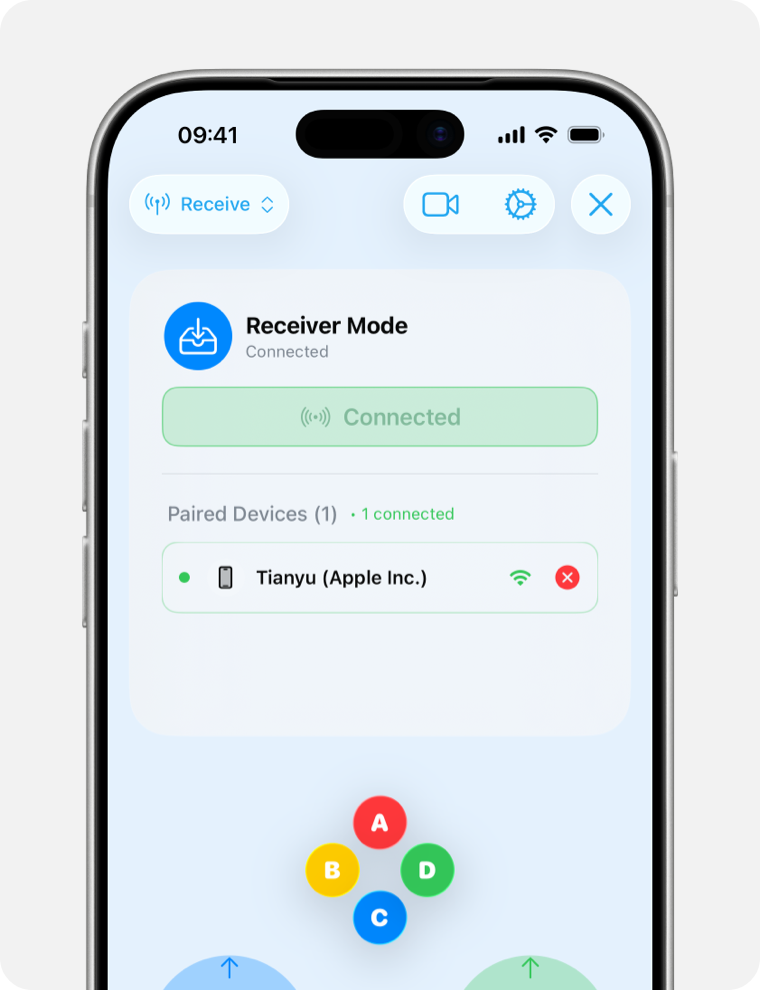
On the receiver, tap **Discover & Connect**.
{% endstep %}
{% endstepper %}

<figure><img src="https://3069436181-files.gitbook.io/~/files/v0/b/gitbook-x-prod.appspot.com/o/spaces%2FiTOs5tBJUyhQCv2lbX6A%2Fuploads%2FjDtYE2Kk43Y8W5OD68Rh%2FasMagic_Joystick_pare1%E5%A4%87%E4%BB%BD.png?alt=media&amp;token=67c1f296-1248-461c-95b6-fdd65afaf298" alt="Joystick sender and receiver connection controls" width="375"><figcaption></figcaption></figure>
{% endtab %}
{% endtabs %}

## Connect a PS5 controller

{% stepper %}
{% step %}
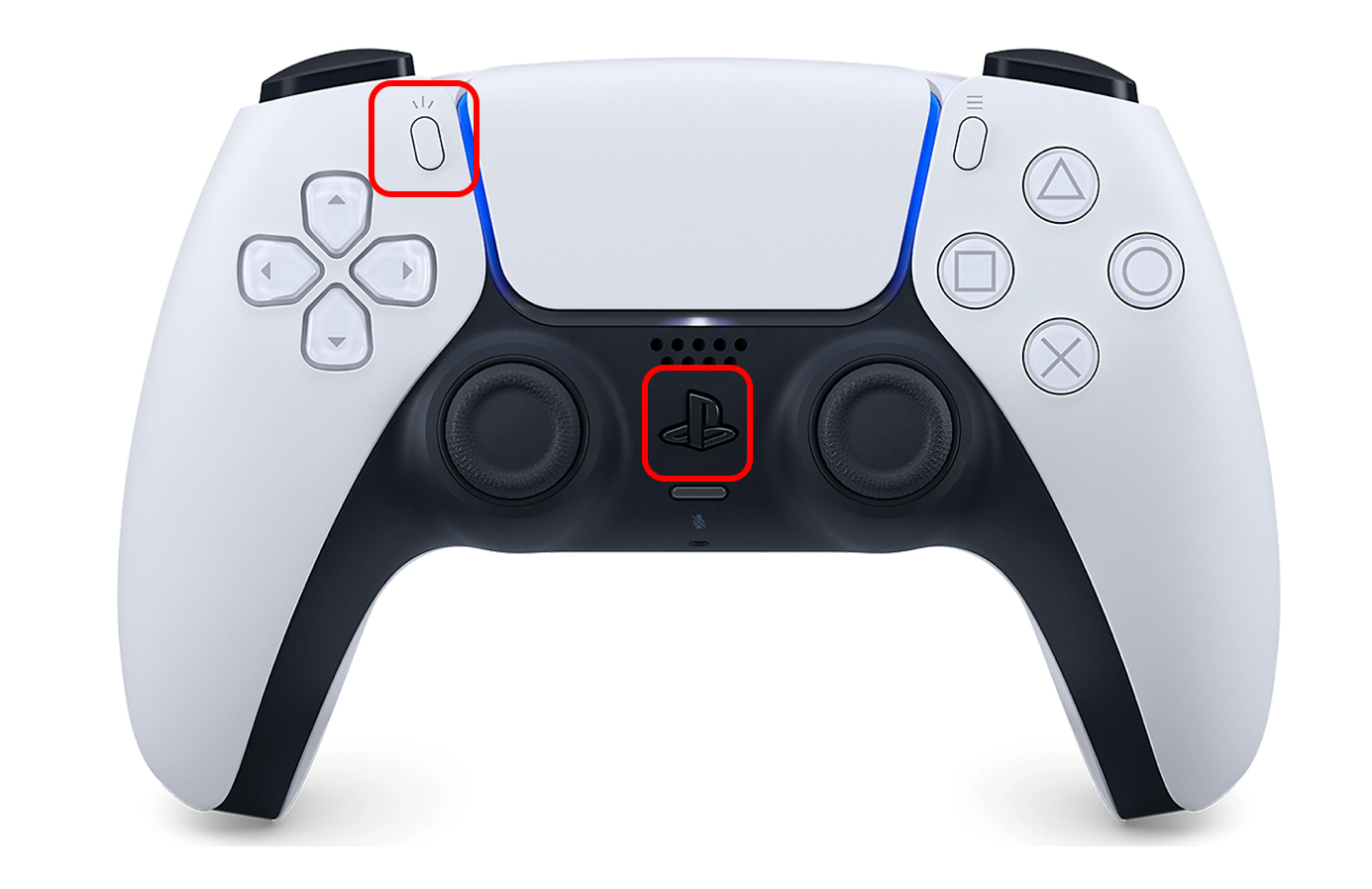
Hold **Create + PS** until the light bar flashes.

<figure><img src="https://3069436181-files.gitbook.io/~/files/v0/b/gitbook-x-prod.appspot.com/o/spaces%2FiTOs5tBJUyhQCv2lbX6A%2Fuploads%2Frryxr8eRbozozCP7A0fJ%2Fps5_connecting.png?alt=media&amp;token=fe72be72-ddcb-441f-b7cb-b01d6851b0a7" alt="Create and PS buttons used to pair a DualSense controller" width="375"><figcaption></figcaption></figure>
{% endstep %}

{% step %}
Open **Settings → Bluetooth** and select **DualSense Wireless Controller**.
{% endstep %}

{% step %}
Return to asMagic and use the controller.
{% endstep %}
{% endstepper %}

## Settings

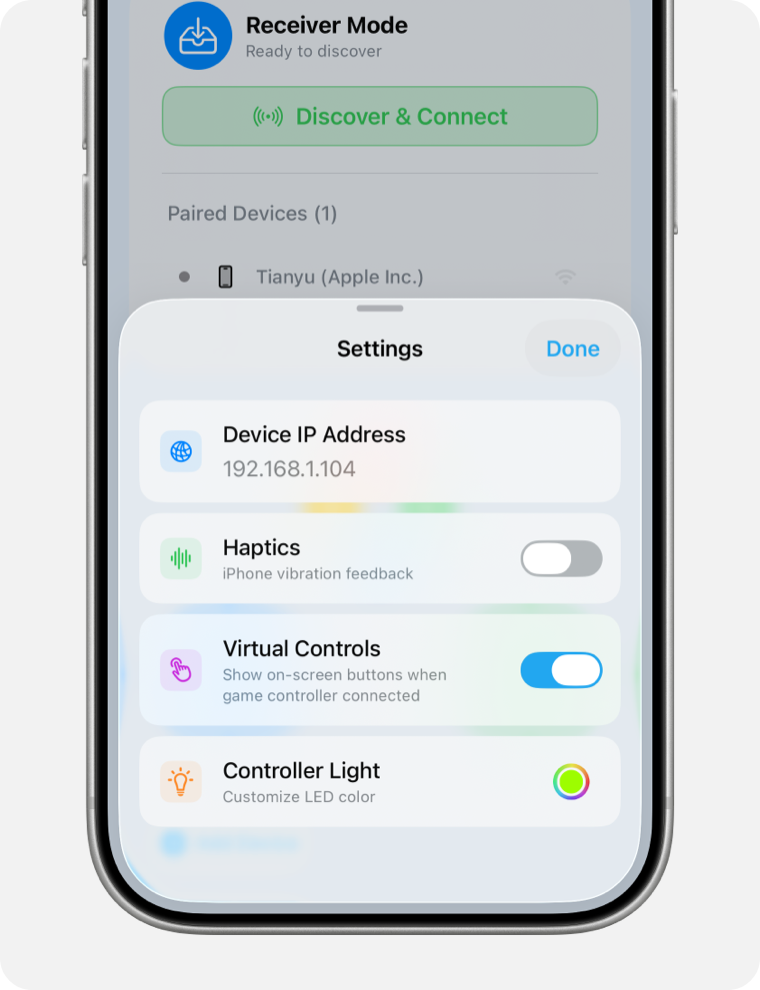
<figure><img src="https://3069436181-files.gitbook.io/~/files/v0/b/gitbook-x-prod.appspot.com/o/spaces%2FiTOs5tBJUyhQCv2lbX6A%2Fuploads%2FCNaqGhypDHMeBdlGbJMp%2FasMagic_Joystick_setting.png?alt=media&amp;token=df38bea9-85b1-4dfc-92e0-ac8cb9b54c20" alt="Joystick settings for IP, on-screen controls and controller LED" width="375"><figcaption></figcaption></figure>

| Setting        | Action                                |
| -------------- | ------------------------------------- |
| IP address     | View the device’s network IP          |
| Hide UI        | Hide the on-screen controls           |
| Controller LED | Choose the controller light-bar color |

## Connection help

<details>

<summary>Only one device shows the pairing</summary>

Pair again with the device missing the pairing as sender. If pairing still fails, reset **Settings → Privacy & Security → Paired Devices → Reset WLAN Identifier** on both devices, then pair again.

</details>

<details>

<summary>Stuck on Connecting</summary>

Close and reopen asMagic, then connect again.
</details>