> For the complete documentation index, see [llms.txt](https://doc.ancoraspring.com/llms.txt). Markdown versions of documentation pages are available by appending `.md` to page URLs; this page is available as [Markdown](https://doc.ancoraspring.com/asmagic/python-sdk/receiving-streamed-data/quick-start.md).
# Quick Start
Receive data from the asMagic app on anywhere else (PC / laptop / Raspberry Pi...).
## Before you start
#### Network connection
{% hint style="info" %}
You can stream data using either **Wi-Fi** or **Ethernet**.
{% endhint %}
{% tabs %}
{% tab title="Wi-Fi" %}
**Option 1 — Wi-Fi (wireless)**
* Connect your **ios device** and your **computer** to the **same Wi-Fi**.
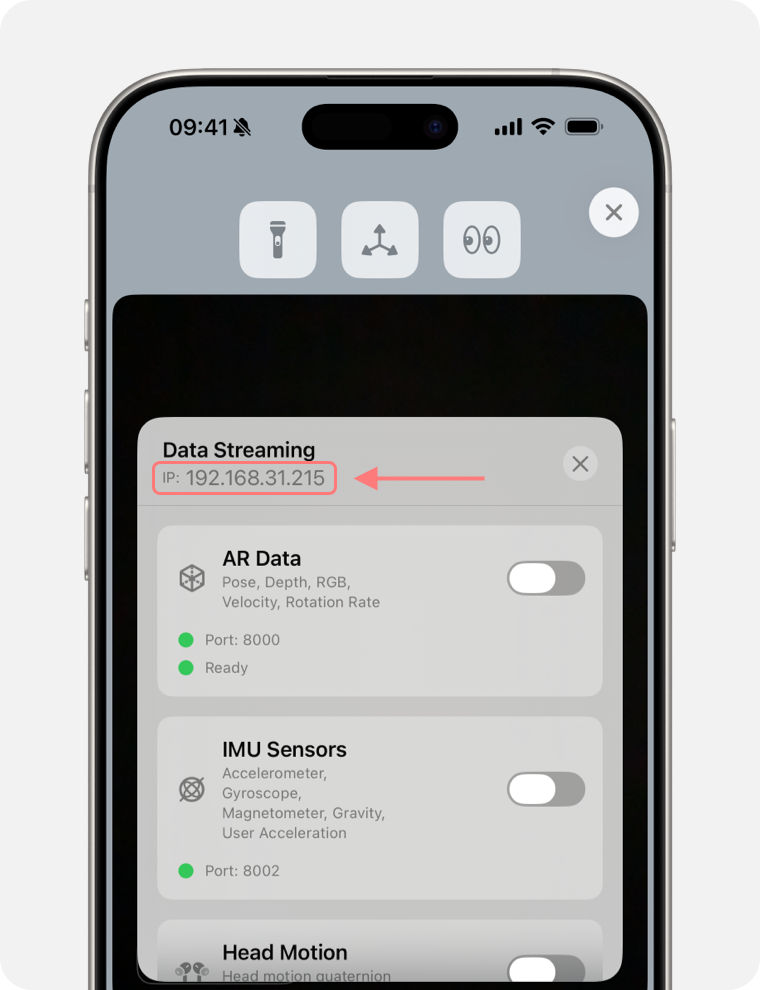
* In the asMagic app, you can quickly view the current **device IP address** .
{% endtab %}
{% tab title="Ethernet" %}
**Option 2 — Ethernet (wired, recommended for stability)**
A wired connection is typically more stable and can reduce packet loss and latency.
* Connect your iOS device (via **Ethernet adapter)** to:
* your computer’s Ethernet port, or
* your router’s LAN port
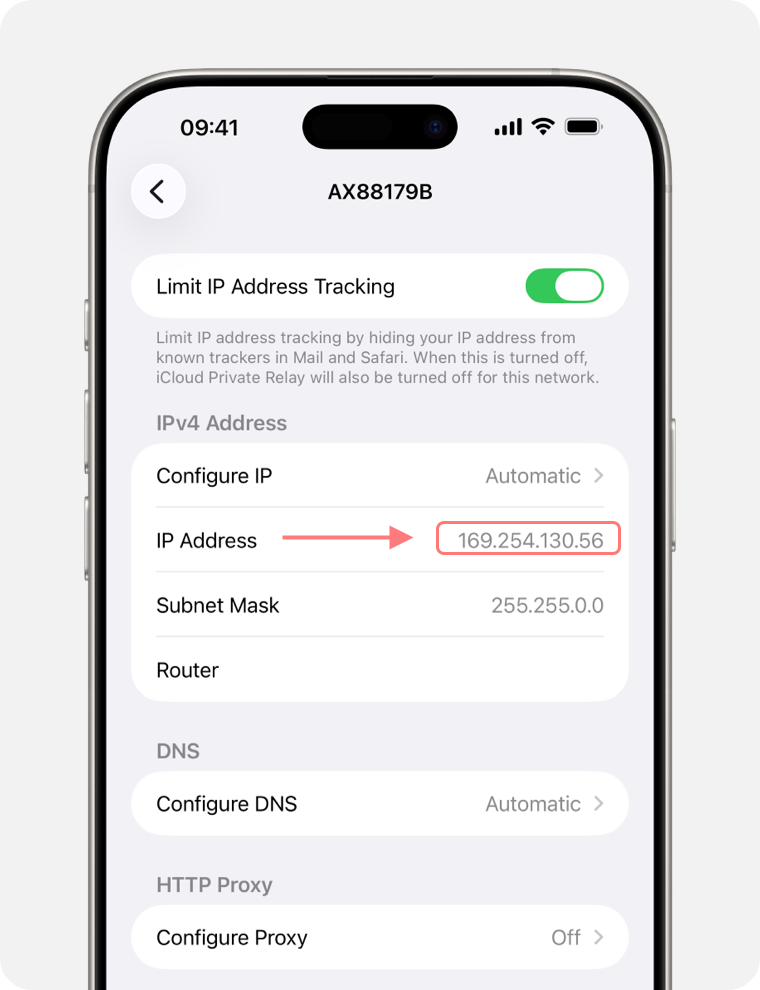
* To find the wired IP address on iOS:
1. Go to **Settings**
2. Tap **Ethernet**
3. Check **IP Address**
{% hint style="info" %}
Only when your iOS device is connected to an Ethernet adapter will the **Ethernet** option appear in Settings.
{% endhint %}
{% endtab %}
{% endtabs %}
***
## Quick demo
### Receive AR Data
```python
from asmagic import ARDataSubscriber
# Create subscriber with your iPhone's IP address
sub = ARDataSubscriber("192.168.1.100")
try:
# Continuous data streaming
while True:
data = sub.receive()
print(f"Timestamp: {data.timestamp}")
print(f"Velocity: {data.velocity}")
print(f"Local Pose: {data.local_pose}")
print(f"Global Pose: {data.global_pose}")
print(f"Camera Intrinsics: {data.camera_intrinsics}")
# Access image data
if data.has_color_image:
# Color: bytes(jpeg format) or array
color_bytes = data.color_bytes
color_array = data.color_array # or shortcut: data.color
print(f"Color: {len(color_bytes)} bytes, array shape: {color_array.shape}")
if data.has_depth_image:
# Depth: Numpy array
depth = data.depth
print(f"Depth: {depth.shape}")
except KeyboardInterrupt:
print("\nStopped by user")
finally:
sub.close()
```
### Receive IMU Data
```py
from asmagic import IMUDataSubscriber
#Create subscriber with your iPhone's IP address
sub = IMUDataSubscriber("192.168.1.100")
try:
# Continuous IMU data streaming
for data in sub:
print(f"Timestamp: {data.timestamp}")
print(f"Accelerometer (G): {data.accelerometer}")
print(f"Gyroscope (rad/s): {data.gyroscope}")
print(f"Magnetometer (μT): {data.magnetometer}")
print(f"Gravity (G): {data.gravity}")
print(f"User Acceleration (G): {data.user_acceleration}")
print(f"Attitude (quat): {data.attitude}")
except KeyboardInterrupt:
print("\nStopped by user")
finally:
sub.close()
```
{% hint style="warning" %}
If you cannot receive any data, the most common causes are:
* wrong IP address
* not on the same network
{% endhint %}